── Attaching core tidyverse packages ─────── tidyverse 2.0.0 ──
✔ dplyr     1.1.4     ✔ readr     2.1.6
✔ forcats   1.0.1     ✔ stringr   1.6.0
✔ ggplot2   4.0.1     ✔ tibble    3.3.0
✔ lubridate 1.9.4     ✔ tidyr     1.3.2
✔ purrr     1.2.0
── Conflicts ───────────────────────── tidyverse_conflicts() ──
✖ dplyr::filter() masks stats::filter()
✖ dplyr::lag()    masks stats::lag()
ℹ Use the conflicted package to force all conflicts to become errors1 Install R


Take Your Time and Do It Yourself
The first part of this course will be on learning to program in R, focused on an ecosystem called “the tidyverse”. I’ve put a lot of effort, and borrowed a lot of expertise from the best programmers and R folks I know, into designing this part of the course so everything feels simple, natural, and empowering. But it only works if you do the work yourself and take the time to reflect on what you’ve learned. If you let ChatGPT (or other AI tools) write the code for you, you might get something that runs, but you do not build the intuition you need to debug, adapt, and create solutions on your own. This part of the course is not busywork or a race. Assignments will build your instincts, your vocabulary, and your confidence, but only if you slow down, read carefully, reflect on what each step is doing, and do things yourself.
Declarative vs Imperative Programming
One wrong way of programming in the tidyverse is to mix programming paradigms (declarative and imperative). This is by far the most commonplace bad behavior that you’ll see in other people’s R code. The tidyverse is declarative. But you’ll see a lot of R code online that’s imperative, which is written in base R. Mixing the two paradigms makes for confusing, sloppy, and complicated code.
Declarative vs imperative: what’s the difference? Imperative programming is relatively low-level: you think in terms of manipulating values using for loops and if statements. Declarative programming is programming at a higher abstraction level: you make use of handy functions (AKA abstractions) to manipulate large swaths of data at one time instead of going value-by-value.
A good metaphor: consider directions versus a GPS. Imperative programming is giving turn by turn instructions. Declarative programming is saying “put UC Riverside into your GPS.” You specify the goal, not every step.
The declarative approach is often easier to write, easier to read, and can be more powerful, because the underlying tools can use information you do not have (Google maps knows about traffic or road closures). That is exactly what happens when you use tidyverse functions like filter(), mutate(), map(), or ggplot2: you state what you want, and the engineers who built those tools handle the details efficiently.
Under the hood, these tools still rely on loops and conditionals. We’ll start this course by learning how to work with data using declarative programming. Then, when we need to start implementing algorithms ourselves starting in unit 2, we’ll learn about imperative programming.
One more thing about declarative programming: I often see students using assignment <- wayyyy too much. If you’re creating a variable for something, and you only use that thing one other time, and naming that thing doesn’t help the readability of your code, why are you creating that variable? If you let your default be “no assignment” instead of “always assignment”, then your code will be much prettier and your global environment will stay clean, which prevents lots of confusion.
Setting up your workspace
Laptop
First thing first, you should decide which laptop you’d like to do your programming assignments on. It can be a Mac, Windows, or Linux machine: all are equally good. If you don’t have a laptop to bring to class, consider checking one out at the HUB or either campus library.
Download and Install R
Do this even if you installed R on your computer for a previous class (it will just update for you).
Go here: https://cran.r-project.org/ and follow the instructions to download R for your Linux, Windows, or Mac. You should download the latest release. If you are a Mac user, first check to see whether you have an Apple silicon mac or an older Intel mac (Top left apple symbol > About this mac > Chip will say M1, M2, … or Intel).
Finish the installation by opening the installer and agreeing to the software license agreement. Click through until you have confirmation it was successful.
Mac users: install xquartz: https://www.xquartz.org/.
Having issues with this step? Try doing your downloads at home instead of on campus. The campus wifi can sometimes be too slow, corrupting the files you’re trying to download.
Install RStudio
Now you’ve downloaded the programming language R! The next step is to download the IDE (Integrated Development Environment): the application you’ll open to work with R.
Go here https://posit.co/download/rstudio-desktop/ and scroll until you see 2. Install RStudio. Download RStudio desktop. Mac users will need to drag the RStudio icon into their applications folder.
Install the Tidyverse
Open up RStudio. You should see 4 panes:
- Source: the document you’re working on. If you’re not working on any document right now, nothing will show up. To start a new R script, go to File > New File > R Script.
- Environments: shows variables you’ve defined in your global environment.
- Console: a scratch pad to run pieces of code and package installations.
- Output: files and rendered plots appear here.
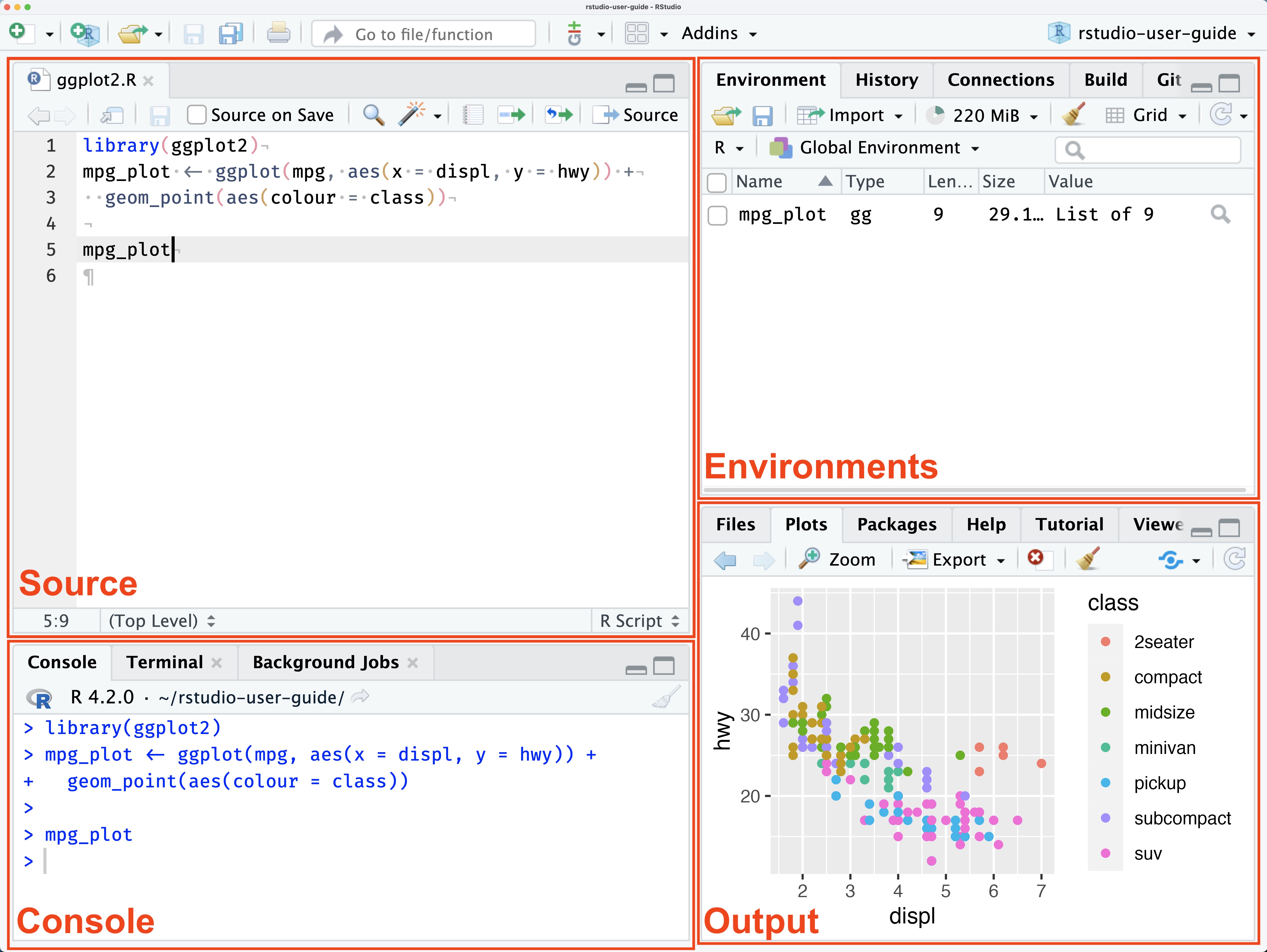
Now locate your console and copy-paste this line of code, then hit enter to install the tidyverse package:
install.packages("tidyverse", dependencies = TRUE)
When it’s done downloading, you’ll see a carrot symbol in your console that indicates it’s ready for more code: >. Let’s check to make sure we’ve successfully downloaded the tidyverse. Run this in your console to attach the tidyverse to your current R session so you can use its functions:
library(tidyverse)
If everything went well, you should see this print:
Install gapminder
You’ll use this package a lot in the first few assignments for this class. Run this in your console:
install.packages("gapminder")
library(gapminder)
Install a few packages we’ll use for plots
install.packages("gganimate", dependencies = TRUE)
install.packages("hexbin")
install.packages("devtools", dependencies = TRUE)
Install qelp
qelp (quick help) is an alternative set of beginner friendly help docs I created (with contributions from previous students) for commonly used functions in R and the tidyverse. Once you have the package installed, you can access the help docs from inside RStudio.
install.packages("https://github.com/cobriant/qelp/archive/refs/tags/v0.1.0.tar.gz", repos = NULL, type = "source")Now run:
?qelp::install.packagesIf everything went right, the help docs I wrote on the function install.packages should pop up in the lower right hand pane. Whenever you want to read the qelp docs on a function, you type ?, qelp, two colons :: which say “I want the help docs on this function which is from the package qelp”, and then the name of the function you’re wondering about.
Install qplotforever
install.packages("remotes")
remotes::install_github("cobriant/qplotforever")
Download the Koans
Visit the koans on github. I wrote this for my Econometrics class; we’ll do about the first half in this class.
Click on the green button that says Code and then hit Download ZIP.
Find the file (probably in your downloads folder). On Macs, opening the file will unzip it. On Windows, you’ll right-click and hit “extract”. Then navigate to the new folder named tidyverse_koans-main and double click on the R project tidyversekoans.Rproj. RStudio should open. If it doesn’t, open RStudio and go to File > Open Project and then find tidyversekoans.Rproj.
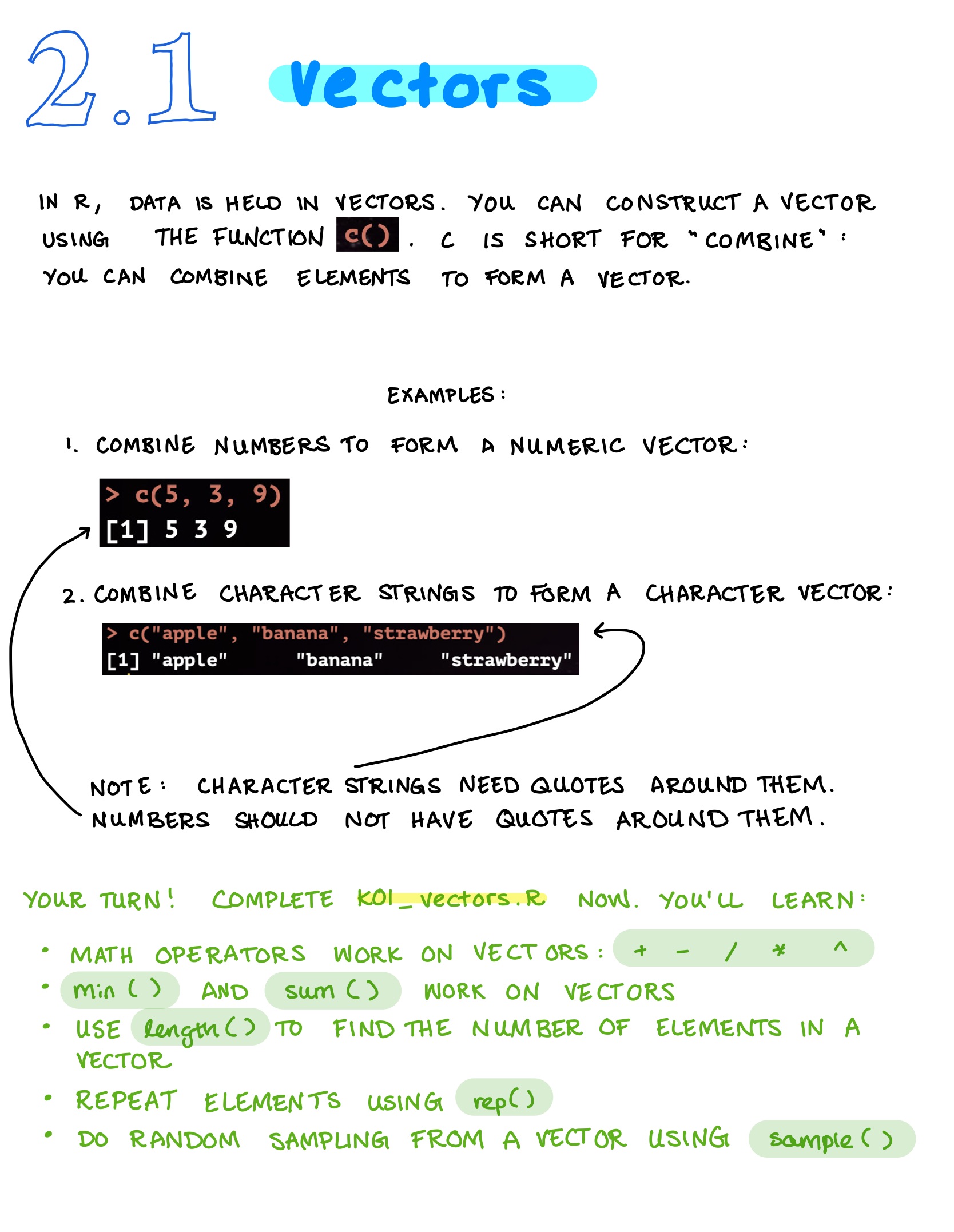
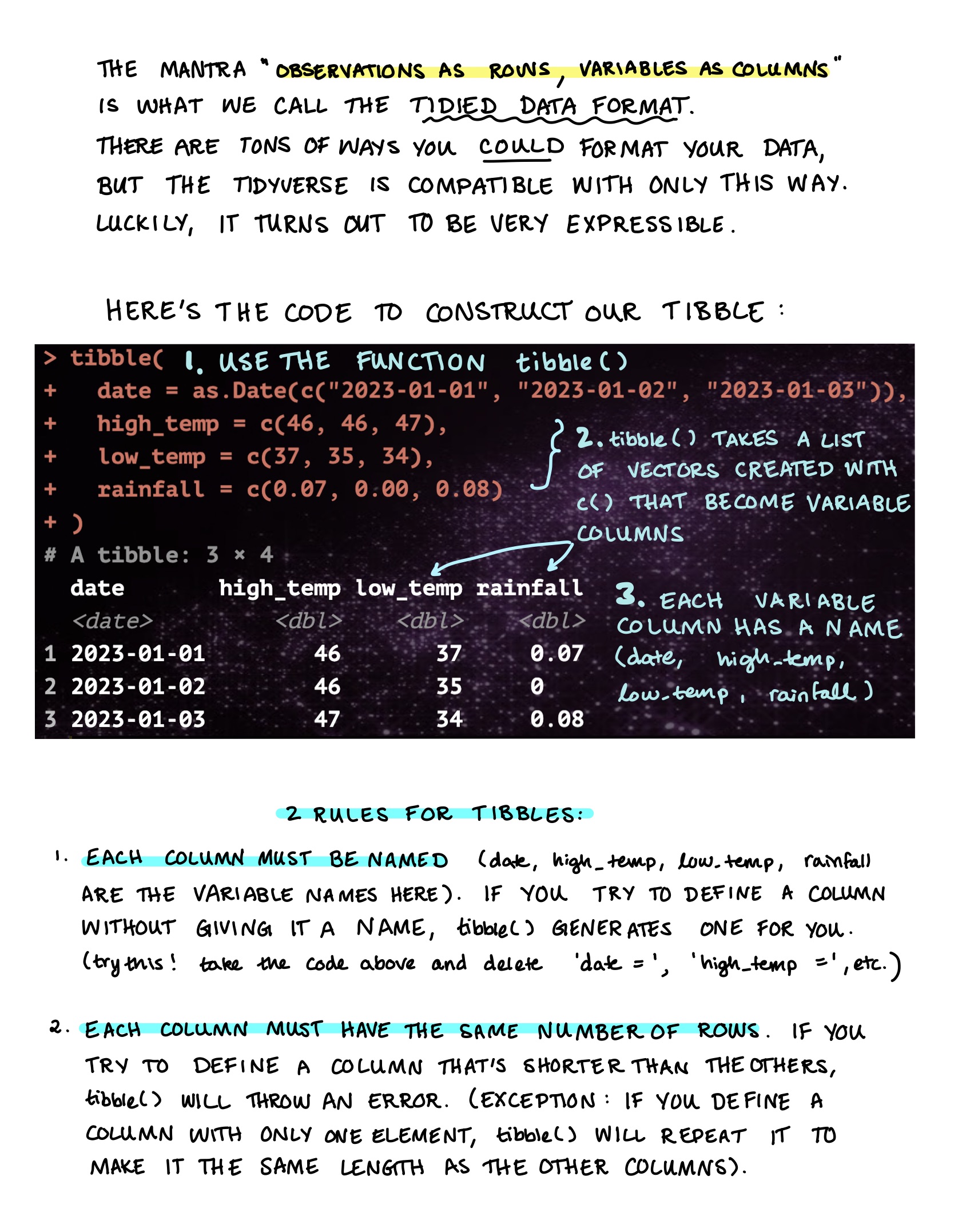
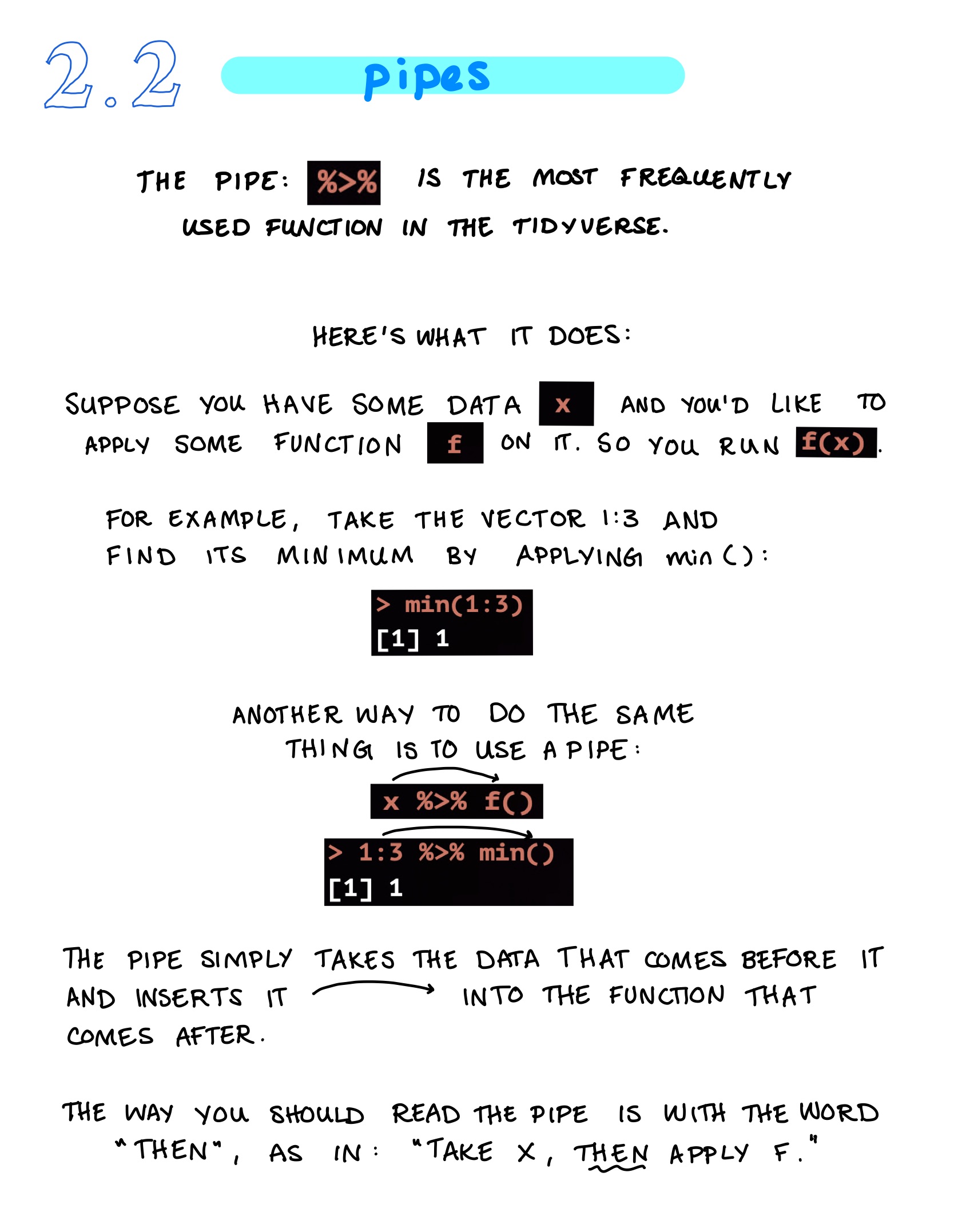
In RStudio, go to the lower righthand panel and hit the folder R. This takes you to a list of 20 exercises (koans) you’ll complete as homework over the course of the quarter. The first 3 (K01_vector, K02_tibble, and K03_pipe`) will be due before next class.
Open the first koan: K01_vector.R. Before you start, modify 2 keybindings:
First, make it so that you can hit Cmd/Ctrl Shift K to compile a notebook:
Macs: Tools > Modify keyboard shortcuts > filter for Compile Notebook > Cmd Shift K > Apply
Windows: Tools > Modify keyboard shortcuts > filter for Compile Notebook > Ctrl Shift K > Apply
Second, make it so that you can hit Cmd/Ctrl Shift T to run the test for only the active koan instead of all the koans:
Macs: Tools > Modify keyboard shortcuts > Run a test file > Cmd Shift T > Apply
Windows: Tools > Modify keyboard shortcuts > Run a test file > Ctrl Shift T > Apply
Now hit Cmd/Ctrl Shift T (Cmd Shift T on a mac; Ctrl Shift T on windows). You’ve just tested the first koan. You should see:
[ FAIL 0 | WARN 0 | SKIP 10 | PASS 0 ]
What does this mean? If there are errors in your R script, the test will not complete. Since it completed, you know there are no errors. Since FAIL is 0, you also haven’t failed any of the questions yet. But PASS is also 0, so you haven’t passed the questions either. Since they’re blank right now, the test will skip them. That’s why SKIP is 10.
The tests are meant to help you figure out whether you’re on the right track, but they’re not perfect: if you keep failing the tests but you think your answer is correct, don’t spend too much time worrying about it. The tests are sometimes a little fragile… They’re a work in progress!
Go ahead and start working on the koans and learning about the tidyverse! There’s no need to wait until they’re due to start the koans. I find that the students who end up becoming the strongest programmers spend a lot of time making sure their koans are well done.
When you’re finished with a koan, make sure to run the tests one last time (Ctrl/Cmd Shift T) and then publish an html version of the document (Ctrl/Cmd Shift K, and if that doesn’t do anything, change the keybinding for File > Compile Report to be Ctrl/Cmd Shift K).
One last thing: whenever you want to work on the koans, make sure you open RStudio by opening the tidyverse_koans-main project, not just the individual koan file. If you open the koans in a session that’s not associated with the tidyverse_koans-main project, the tests will fail to run. You can always see which project your current session is being associated with by looking at the upper right hand corner of RStudio: if you’re in the tidyverse_koans-main project, you’ll see tidyverse_koans-main up there. That’s good. If you’re in no project at all, you’ll see Project: (None) up there. That’s not good, especially if you want the tests to run. If you see Project: (None), just click that text and you’ll be able to switch over to the tidyverse_koans-main project.

Homework 1: Koans 1-3
As you complete each koan, fill out this website. It will give you feedback as you go and when you finish, it will give you a pdf to download and submit to Canvas as evidence you completed the assignment.